Data Retention on GA4: User and event data retention on the new GA4 is something that all companies who are serious about data collection to improve website and marketing performance, need to make sure they have set up correctly.
The user and event data retention on GA4 is automatically set up for 2 months. Yes, you read right, the data you see in the new GA4 disappears after 2 months unless you change it. This means that you will never be able to see Year on Year trends.
With this in mind, you really need to ensure that your data retention settings in GA4 are amended.
It’s really simple to do, but in most instances will get overlooked.
Here is your step by step guide:
1) In Google Analytics, click Admin
2) In the PROPERTY column, click Data Settings > Data Retention.
3) Event data retention: select the retention period you want.
4) Reset user data on new activity: turn the switch on or off.
5) Click Save.
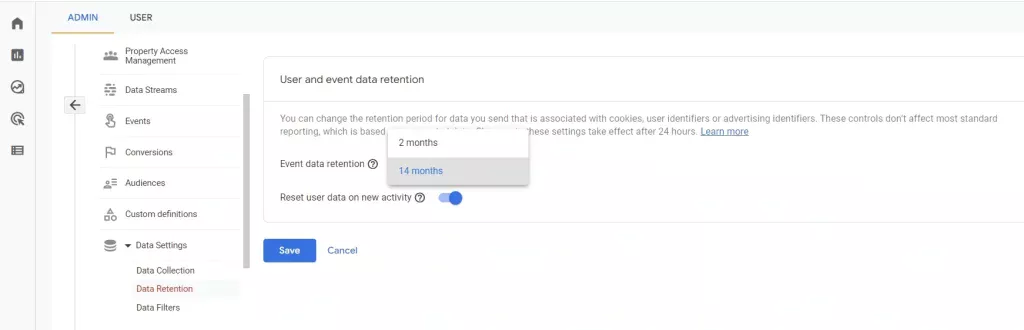
Reset User Data on Activity
Turn this option ON to reset the retention period of the user with each new event from that user, therefore setting the expiration date to current time plus your selected retention period of 2 months or 14 months).
For example, if data retention is set to 14 months but a user initiates a new session every month, then that user’s identifier is refreshed every month and never reaches the 14-month expiry. If the user doesn’t initiate a new session before the retention period expires, then that user’s data is deleted.
If you do not want the retention period for a user identifier reset when that user has new activity, turn this option OFF. Data associated with the user identifier will be deleted automatically after the retention period.
The reset feature applies to only user-level data.


